
FAQ
- Crystal Weber

- Dec 6, 2024
- 2 min read
Updated: Jan 15, 2025
Do you have a tech troubleshooting document I can share with my clients?
We have created a handy troubleshooting guide for parents, which you can download and share with your parents. It's available in both English and Mandarin.
How does my student connect to audio?
Students should click on “Allow” when the browser asks permission to use their microphone.
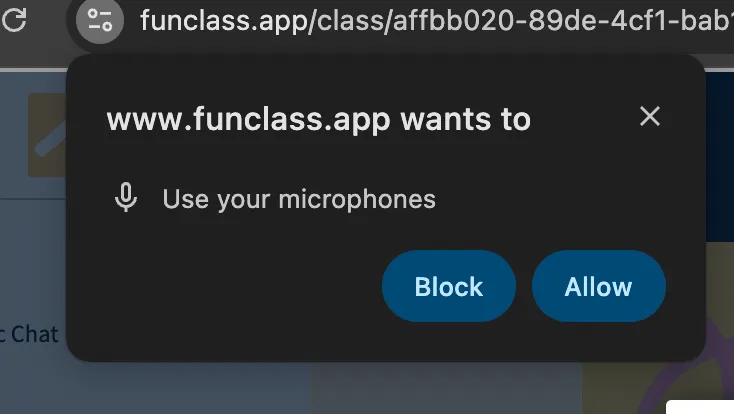
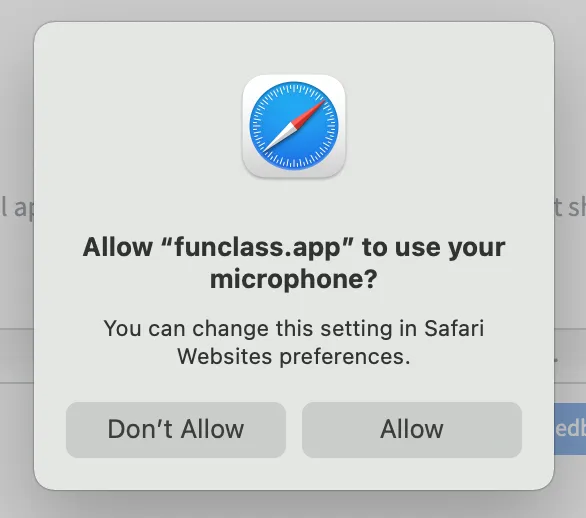
Next they will enter into a private echo test. This echo test will let the student quickly check that their microphone is working. After they see the Echo Test, speak a few words into the microphone. They should hear an echo of their words and this is how they will sound to others in the session. If they can hear themselves, select Join audio. Your student may need to choose an alternate audio device if they do not hear themselves in the echo test.

A pop up message will appear to indicate that they are sharing their audio.

After joining audio with microphone, you will see a microphone icon next to students’ names.


No microphone indicates they have not successfully enabled their audio, so they will need to refresh the browser to engage the audio chooser.
What if my student has joined audio, but still can't be heard?
If your student does not hear themselves in the echo test, ask them to select a different Microphone and Speaker from the available devices in the drop down lists.
They can also change the audio settings by clicking on the little arrow on the audio button.

If they are in the session and do not have a microphone indicator next to their emoticon in the users list, they are not connected to the audio. Ask them to refresh the browser to engage the audio chooser.
Can my students use screenshare to share their screens?
Only presenters have the access to sharing the screen. If you want to let a student share the screen, you have to make the student presenter.

Later, you can use the same function to take back presenter mode for yourself.
How can I enable or disable student annotation of the whiteboard?
You can click on the multi-user button at the bottom of the board to give students access to annotate the whiteboard.

If you only want to give certain students access to annotation features, you can click on their names in the user list and give whiteboard access to particular students.

You can also remove the whiteboard access of some students in the same way.

How can I download an annotated whiteboard or presentation?
Click on the blue ➕ button → Choose Upload/Manage presentations:

Click on the three dots of the presentation that you want to download → "Send out a download link for the presentation including whiteboard annotations." This will send the presentation into the chat.

Navigate to the public chat and download it!

How can I amend or cancel my subscription?
Please contact yan@getfunclass.com to manage or cancel your subscription.


Comments